
YOUR TRAVEL ESIM GUIDE
From takeoff to
online.
Choose a data plan, install your eSIM, and get connected when you arrive.
Check when your plan starts before you install.
Get connected in three simple steps.
An eSIM is a digital SIM. You can add a travel data plan in your phone settings.
1
Choose your plan
Find your destination and compare coverage, data allowance, validity and the activation rule.
Browse destinations2
Install your eSIM
Connect to Wi‑Fi and follow your provider’s instructions. Keep the QR code or manual details handy if provided.
See device instructions3
Connect on arrival
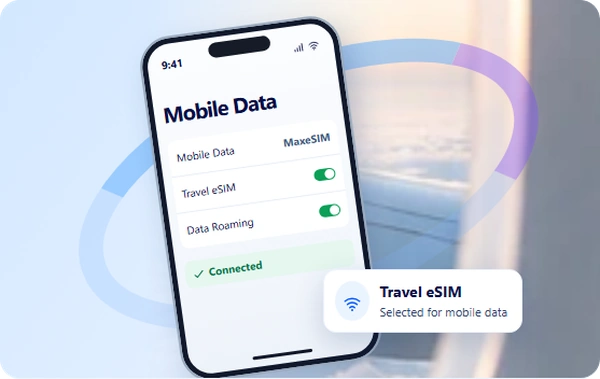
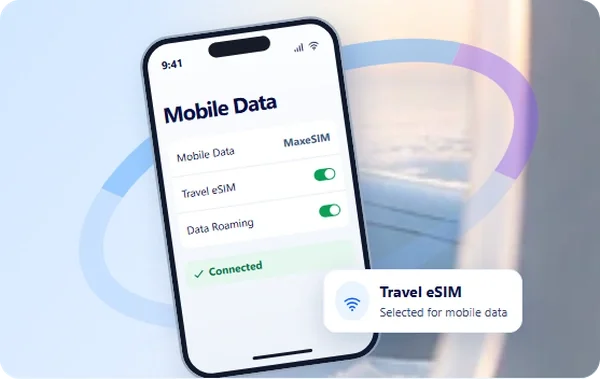
Turn on the travel line, choose it for mobile data and follow your plan’s roaming instructions.
Open arrival checklistInstallation guide
Set up your travel eSIM.
Choose your phone to see where to start.
- Open Settings › Mobile Service or Cellular › Add eSIM.
- Select Use QR Code if your provider gave you one. Scan it and follow the prompts. Label the new line "Travel" so it's easy to find later.
- Check your plan's activation timing before enabling the travel line for mobile data.
Before you install
- Use a stable Wi-Fi connection.
- Keep the setup instructions open.
- Review when your plan starts.
When you land
Your arrival checklist.
Tick off each step as you get connected.
0 of 4 complete